The eight shapes
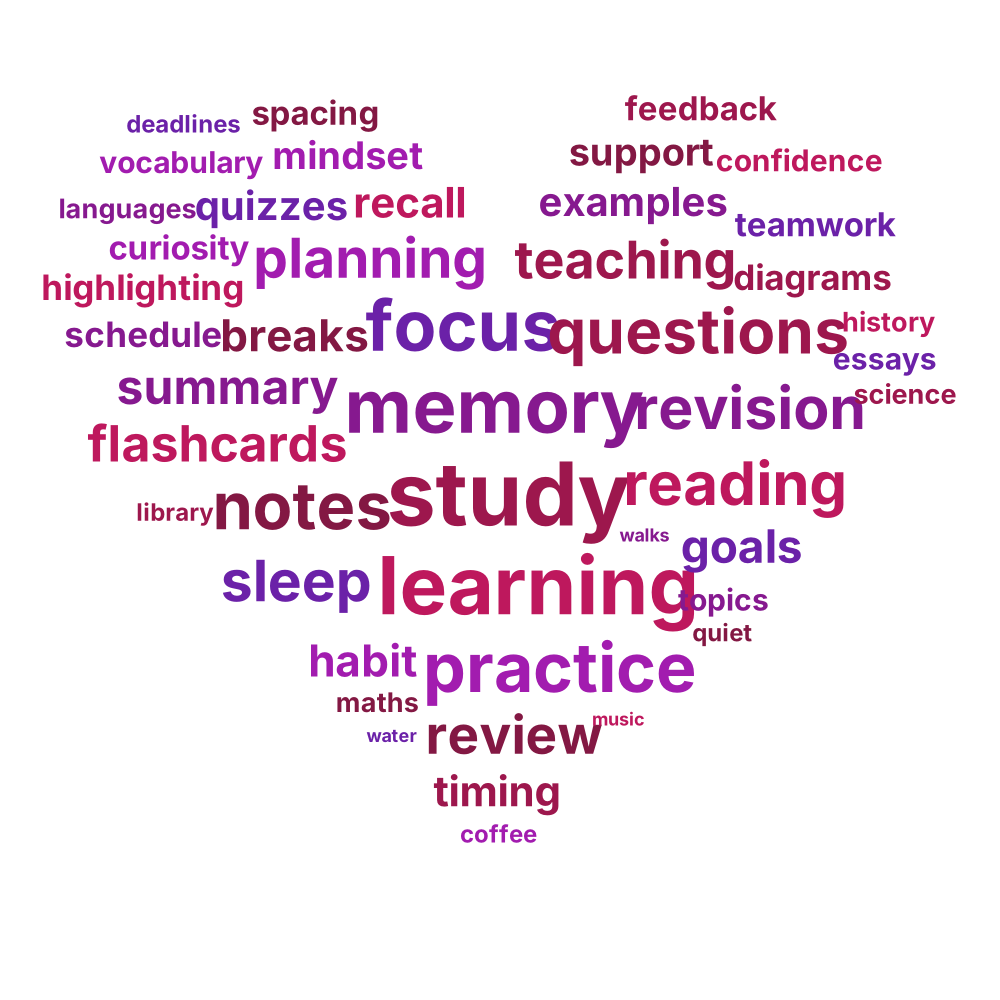
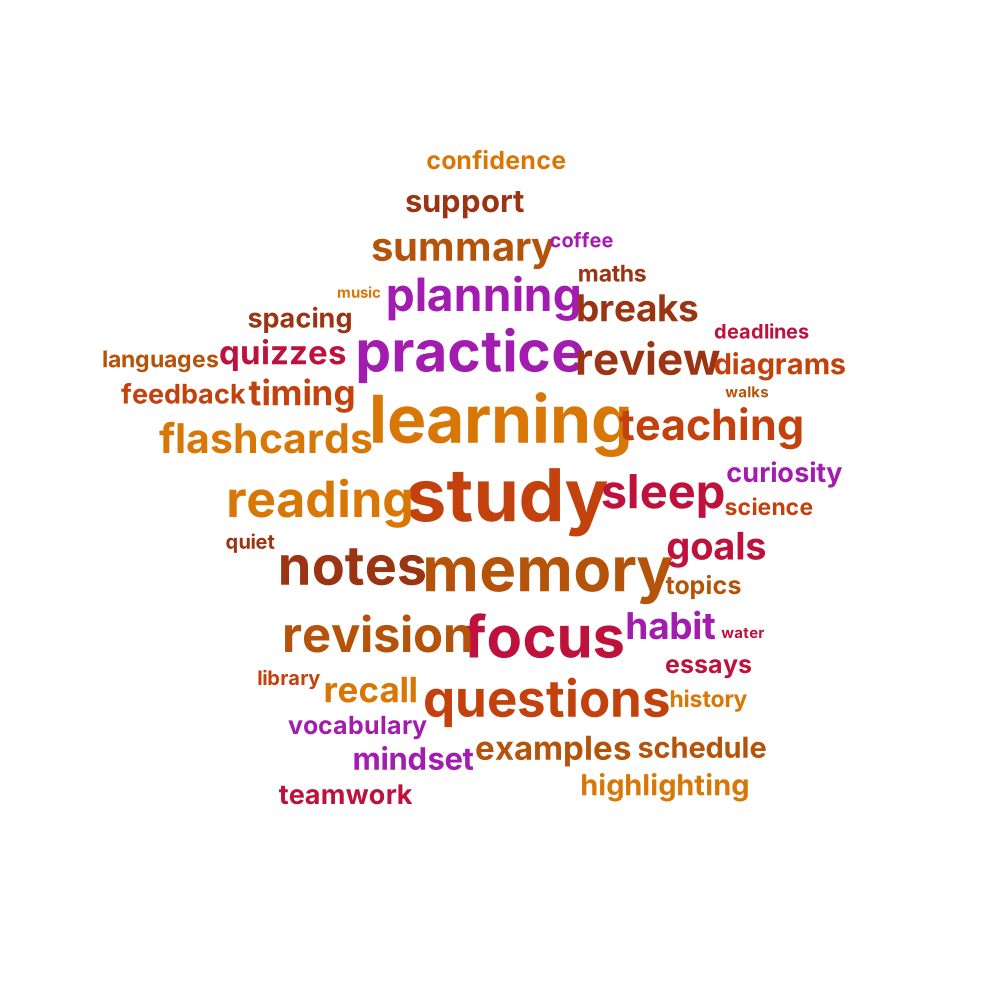
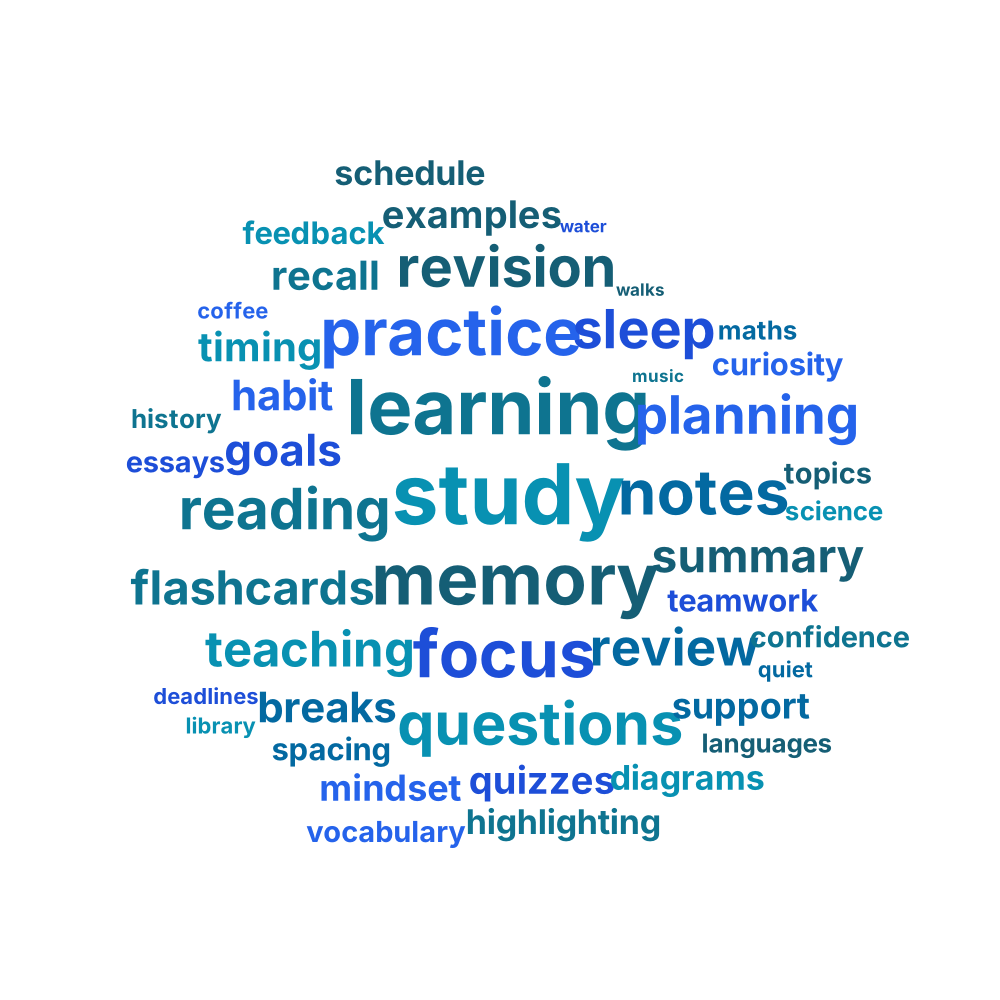
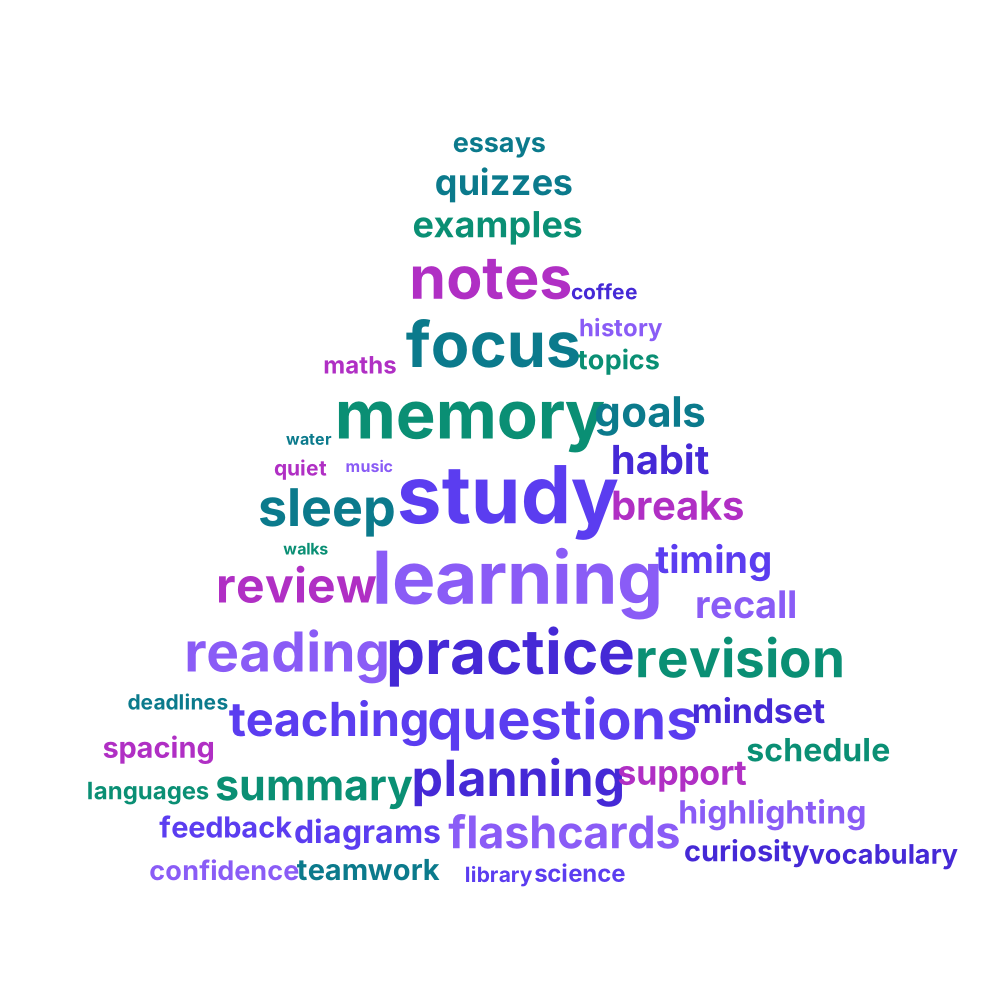
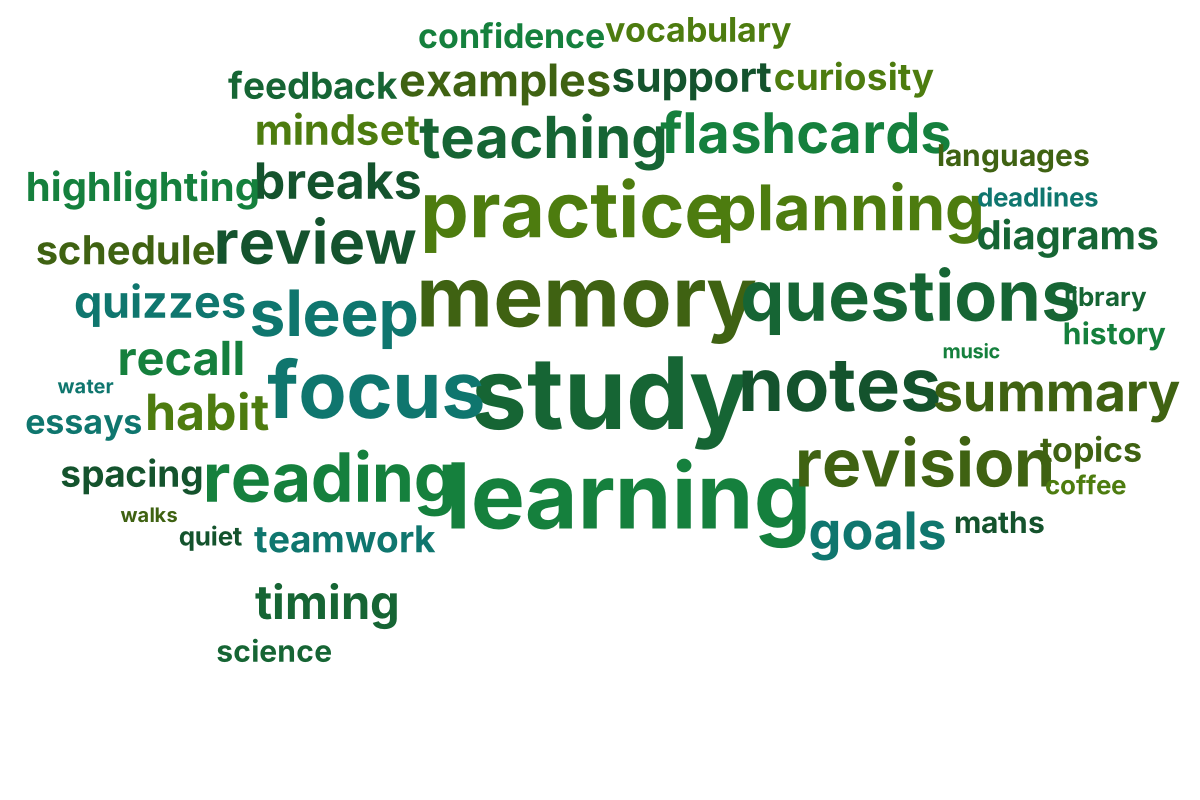
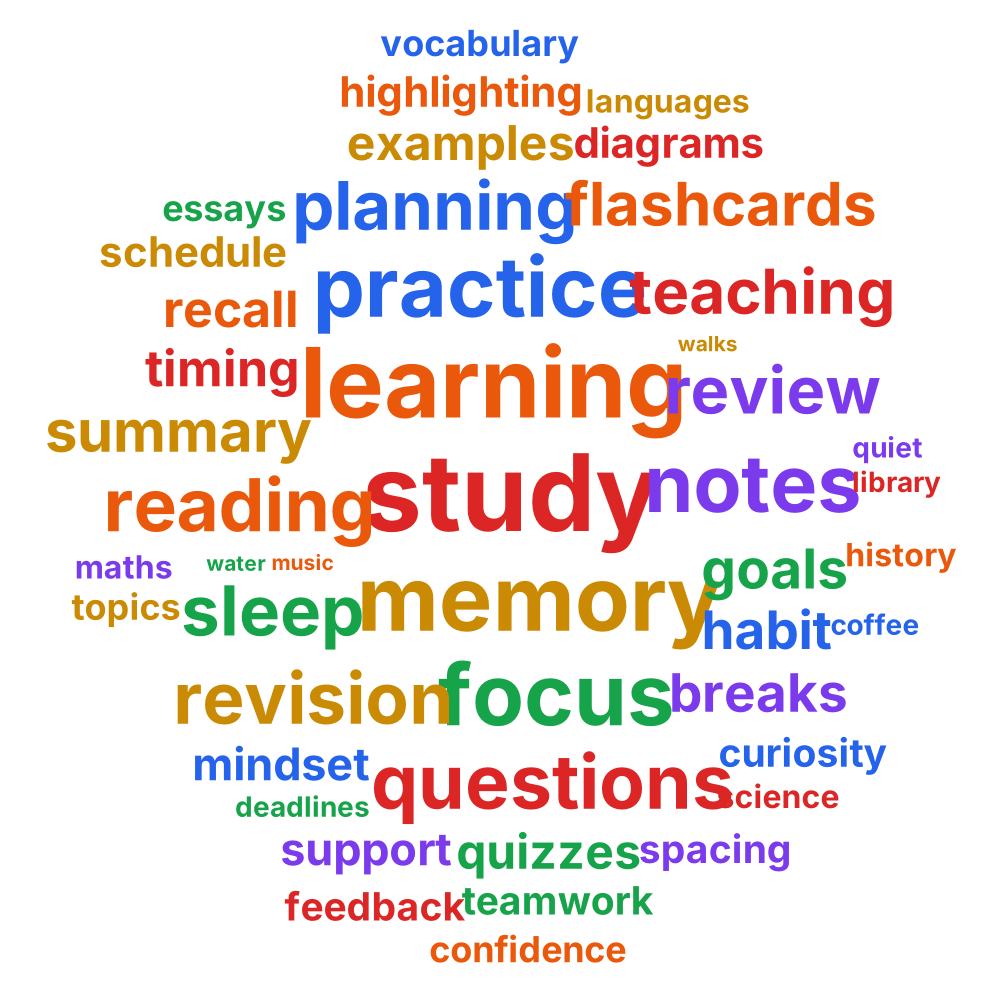
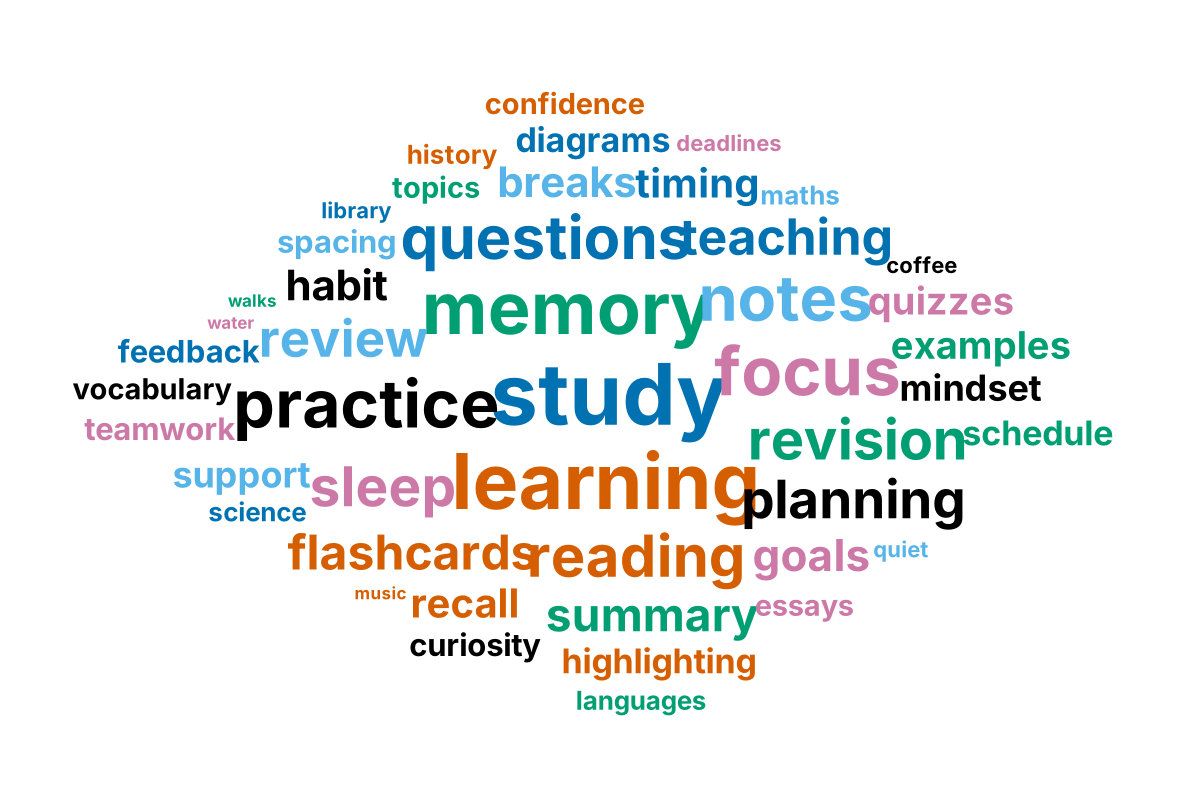
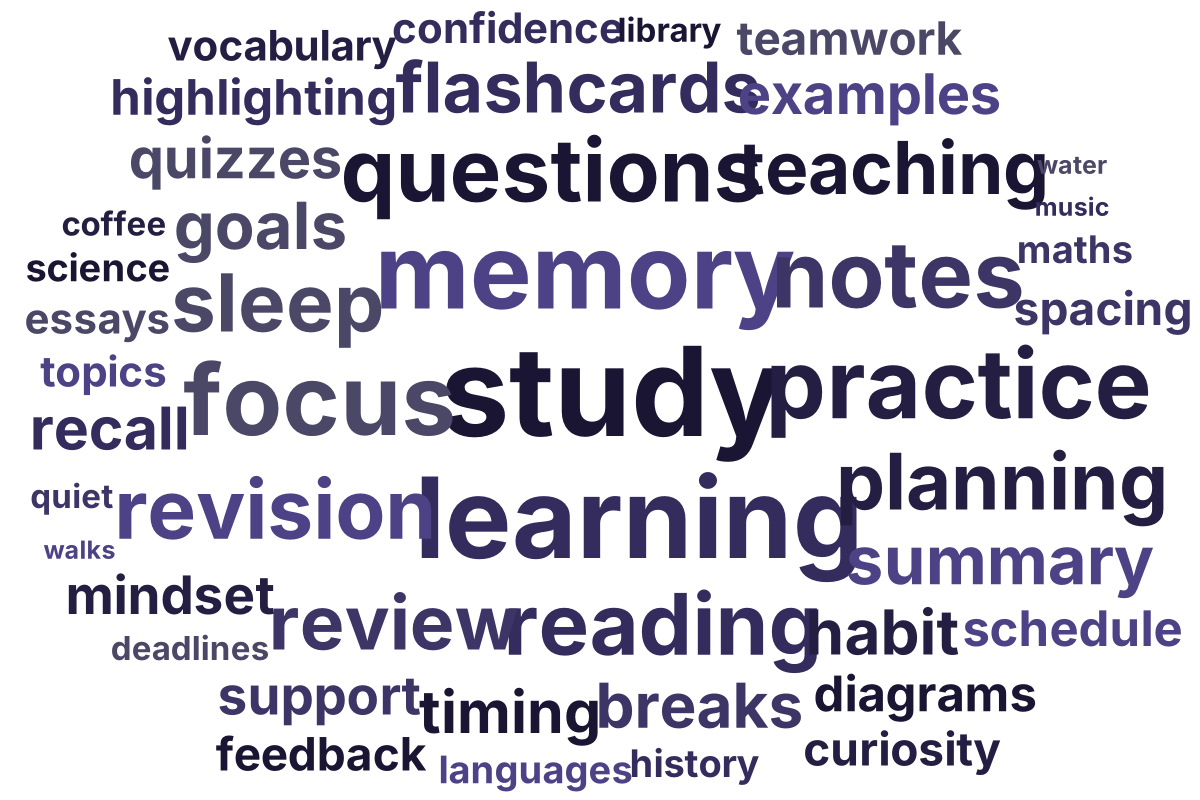
Every example below was made by this generator from the same list of 46 study-related words and exported as an SVG. Colours differ only to show the palettes.
How the shapes work
A shape is a boundary. The layout places words from largest to smallest, starting from the middle of the shape, and a word is accepted only if its whole box sits inside the boundary and clear of every word already placed. So the shape is made by where words are allowed to go. Nothing is drawn behind the words, and there is no outline, which keeps the SVG clean. If you want a visible shape, add a background colour or place the exported file on a shape in your design program.
Stretching and fitting
The rectangle, circle or oval, diamond and speech bubble stretch to the canvas you choose: an oval on a wide canvas, a circle on a square one. The heart, star, triangle and cloud keep their proportions and fit inside a square in the middle of the canvas, so on a wide canvas they leave empty margins at the sides. For those four, choose the Square canvas.
Auto-sizing
With “Auto-size words to fill the shape” ticked (the default), the tool tries a range of sizes for the biggest word and keeps the largest one at which every word still fits, so the shape fills out. With few words you get big words; with many words, smaller ones. If you untick it you set the largest word yourself, and words that do not fit at your chosen sizes are shrunk and, if they still do not fit, left out and named under the cloud.
Limits to know about
- Rectangular word boxes. Each word is treated as a rectangle slightly taller than its letters, so edges of a curved shape look slightly stepped, and there are small gaps around short words.
- No custom shapes. You cannot upload a logo or a silhouette. The eight shapes are built in.
- Thin parts stay empty. Star tips, the triangle apex and the point of the heart can only hold words small enough to fit, and a word is never squeezed or clipped to fill them.
- Words never overlap and never cross the edge. This is checked for every layout: the automated tests for this tool confirm that, for all eight shapes, no two boxes intersect and every box lies inside the boundary.
- Sideways words are turned exactly 90 degrees, and only when you ask for them.
Choosing a shape
- Rectangle for slides, reports and anywhere you want the most readable result.
- Circle or oval for a neat, balanced badge or a social post.
- Heart for thank-you cards, farewells and Valentine’s Day projects.
- Star for achievements, awards and certificates; use few words, or accept that the tips will hold little.
- Cloud for weather topics or just for a cloud-themed handout.
- Speech bubble for quotes, comments and feedback.
- Triangle and diamond for decorative layouts and posters.
To start from the basics, read how to make a word cloud. For colours and fonts, see the options in the generator at the top of this page, and for putting the result on a slide, this guide.
More word cloud tools and guides
- Word cloud generator
- How to make a word cloud
- For teachers and students
- Word, PowerPoint and Google Slides
Frequently asked questions
- Which shapes are available?
- Rectangle, circle or oval, diamond, heart, star, triangle, cloud and speech bubble.
- Can I make a heart-shaped word cloud?
- Yes. Choose Heart, pick the Square canvas, and generate. A palette such as Berry suits it. Use 30 to 60 words for the best fill.
- Can I upload my own shape or logo?
- No. Custom image masks are not supported; only the eight built-in shapes are.
- Why is part of my star empty?
- The star tips are thin. A word is placed only if its whole box fits inside the shape, so the tips stay empty unless a short, small word fits. Reduce the word count or the smallest word size to let more words in.
- Do words overlap?
- No. Every word is placed so that it does not touch any other word and stays inside the shape, and a small gap is kept between words.